
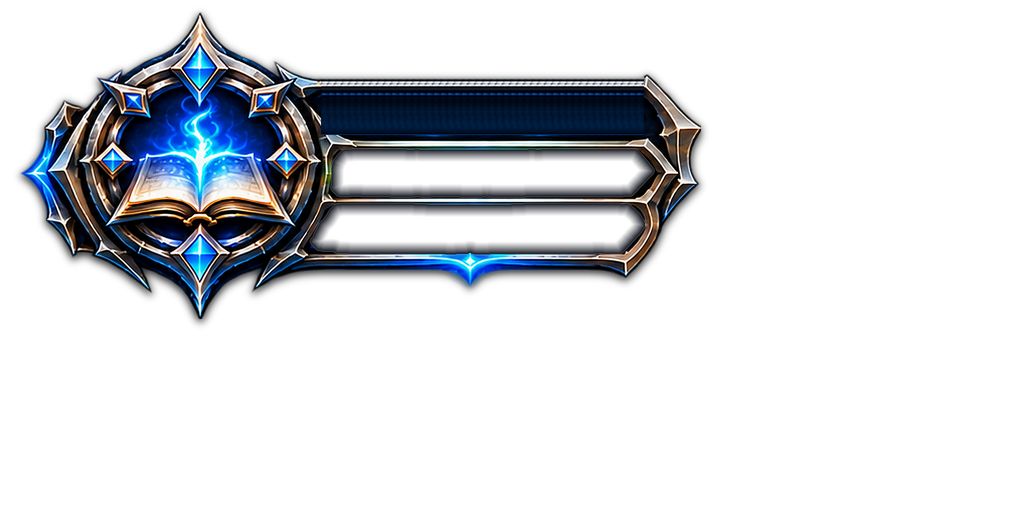
Guardian
The classic framed look.
Layouts, bars, colours and icon shapes. All optional.
Choose a layout in Settings → Layout. Which layouts you see depends on your class. These are the plate artwork used by three of them (artwork shown on a chequered background; it is not an in-game screenshot).
The classic framed look.
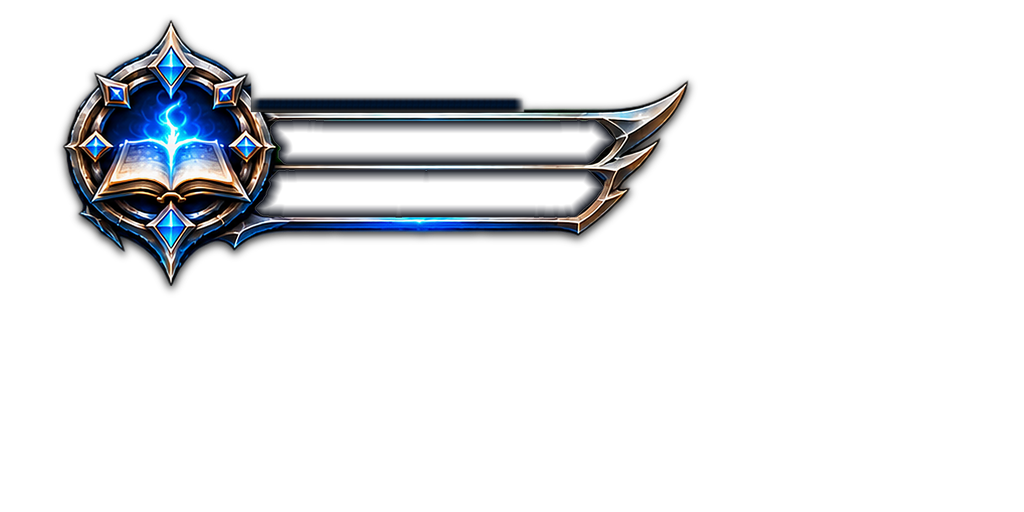
Tucked toward the screen corner.
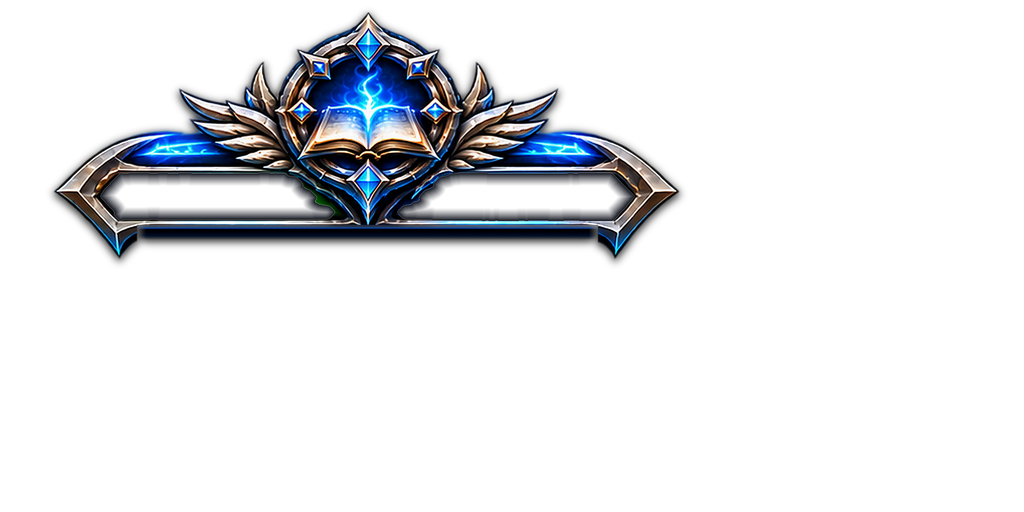
Health and resource on separate plates.
Also available: Modular, Compact, Elemental and Minimal. Choose None to keep the game's default layout.
This is the Bars & Cast page. Everything has a plain button: style, corners, shadow, health colour, text, width and height, plus a separate cast bar and optional swing timer.

The Colour skins button on the settings window changes the accent colour and crest, with one colour for each class.
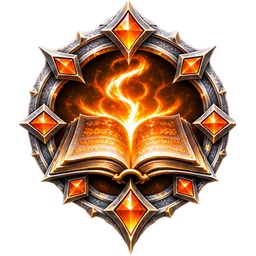 Druid
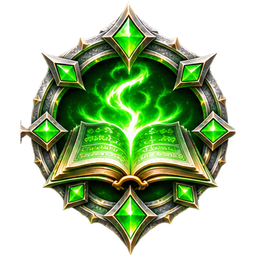 Hunter
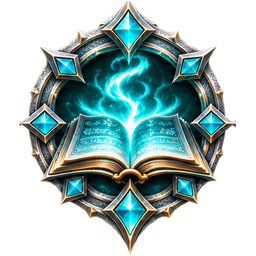 Mage
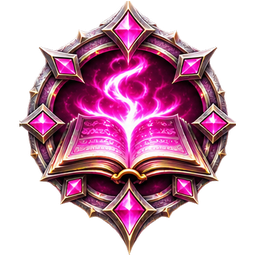 Paladin
 Priest
 Rogue
 Shaman
 Warlock
 Warrior
Pick square, soft, round or circular cooldown icons, with the dark outline shadow on or off.
Use /cg unlock, drag the bars and windows where you want them, then /cg lock. Positions are saved per character and remembered after /reload. Every position can be reset from the settings.